Русский · English
x2proxy at a glance
We give you access to our own residential proxy network, built on real home devices, and you manage everything from a single dashboard. Switching locations, getting a new IP or capping traffic takes a couple of clicks, and you never have to dig into your antidetect browser or tool settings to do it.
Website: https://x2proxy.com/
Dashboard: https://cabinet.x2proxy.com/
Why x2proxy, in 30 seconds
- Static ports. Add a proxy to your tool once and leave it there. You change the location, session or IP from the dashboard, and the connection details stay the same.
- Rotate IPs on the fly. Grab a new IP with one click or a link while you're working. There's no need to restart your tools or reopen browser profiles, and you can check the current exit IP whenever you like.
- Classic proxy generator. Choose a country, state or province, city, session type and quantity, and you'll get ready-to-use proxy strings in the format you need. Copy them or export them to
.txt/.csv. - Data limits. Put a cap on every port and every sub-account so one project or team member can't burn through your whole balance.
- Two device pools. Sticky sessions last up to 5 days in the first pool and up to 2 hours in the second.
- Keep IP same. Your IP stays put until you decide to change it.
- Usage you can actually see. Analytics show which domains and IPs your traffic went to, and you'll get an email before you run out.
- Less wasted bandwidth. Block ads, trackers and telemetry on all your proxies at once, using your own list or ready-made ones.
- Volume pricing. The more you buy, the less you pay per GB, from $4 down to $1.40. Buying in bulk? We're happy to work out a custom deal.
- Leftover traffic isn't lost. If it expires, any small purchase brings it back.
Find your fit
Just getting started: "I just need proxies that work"
Open a pool, pick a country and click "Copy". Your proxies show up right away, ready to copy or download as .txt / .csv. The Proxy Creation section walks you through it.
Power user: "I juggle lots of profiles and projects"
You'll want ports. Set up one per profile, give it a name you'll recognize, and choose its location and data limit. When you need a different country or a fresh IP, you change it in the dashboard instead of opening your antidetect browser.
Teams and scale: "I need automation, team access and cost control"
Once you're running hundreds of proxies, using tens of terabytes and working with a team, you want things under control without spending your day on manual work. Here's what helps:
- Generate as many proxies as you need in one go, then copy them or save them as
.txt/.csv. - Manage ports through the API and rotate IPs with a link. Both are easy to plug into a script, bot or your own workflow.
- If a team member or client needs proxies, give them a port. They get working connection details with their own data limit, but they can't touch your settings or get into your dashboard.
- Use sub-accounts to split proxies and traffic by project, department or person. Each one has its own limit per pool, and its usage is tracked separately.
- Break down usage by date, country, port, sub-account or target site, and check the logs to see exactly where the traffic went. Email alerts let you know when you're running low.
- Traffic Savings blocks ads, trackers and other junk requests across all your proxies. At high volumes, the savings add up fast.
- For work where your IP can't change halfway through, use Keep IP same and the long sticky sessions in Pool 1.
There's more on all of this under Ports, Usage control and savings and Sub-accounts.
Ports (Port Creation): one of our standout features
Here's how changing a proxy usually goes: you open your antidetect browser, edit the profile, paste in a new proxy and save. Then you do it all over again for the next profile. A week later, you have no idea which profile used how much data.
Ports fix this. A port gives you connection details that never change. You add it to a profile once, and from then on you manage everything in the dashboard:
- switch the country, state or city;
- change the session type and duration;
- check the current exit IP;
- get a new IP with a click or a link;
- set a data limit and keep an eye on usage.
Your antidetect browser profile stays exactly as it is.
A data limit for every port
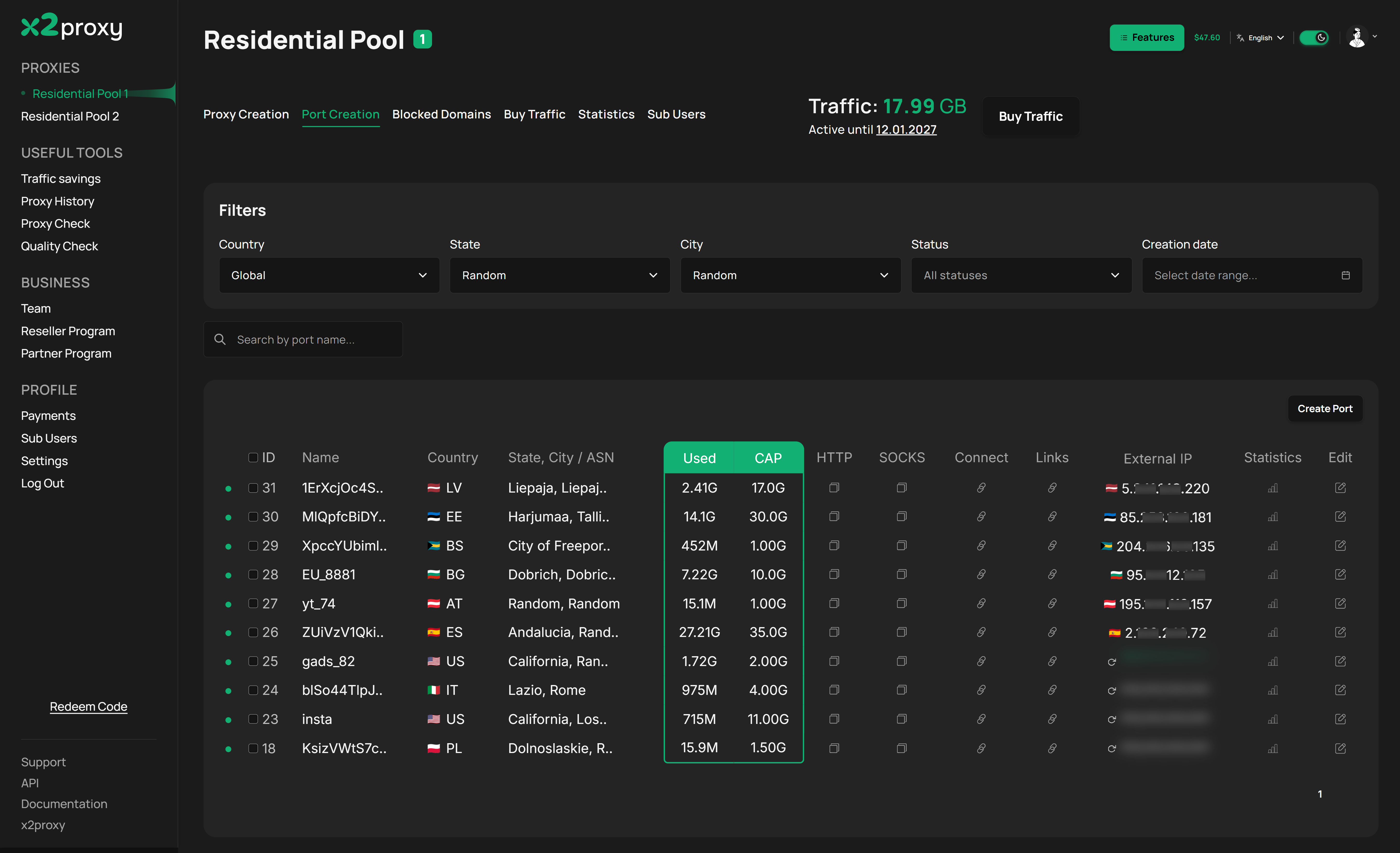
Every port can have its own traffic budget, say 1 GB for a Telegram account and 30 GB for a work project. The table shows how much has been used (Used) next to the limit (CAP). It comes in handy when you share proxies with clients or colleagues, when you want to know what each project really costs, or when you're worried a stuck app might eat through all your data.
What you see in the ports table
| Column | What it shows |
|---|---|
| ID, Name | The port number and the name you gave it, like "telegram", "insta" or "fb_us_1". |
| Country, State, City / ASN | Where the port is located: country, region, city or ISP. |
| Used / CAP | How much data has been used and what the limit is. |
| HTTP / SOCKS | Copies the proxy in HTTP or SOCKS5 format with one click. |
| Connect | Username, password, host and port as separate fields. |
| Links | Links for checking or changing the IP. |
| External IP | The current exit IP and a button to rotate it. |
| Statistics, Edit | Usage stats and settings for the port. |
You can filter ports by country, state, city, status and creation date, or just search by name.
Connection details
Some tools won't take a full proxy string. For those, you can copy each field separately:
Proxy username: pool_res1;port22_XXXXXXXXXXXX
Proxy password: XXXXXXXX
Proxy host:     pr.x2proxy.com
Proxy port:     2222
Rotate IPs with a link
Each port comes with two private links:
Show IP:   https://api.x2proxy.com/ports/show-ip?token=YOUR_TOKEN
Change IP: https://api.x2proxy.com/ports/rotate-ip?token=YOUR_TOKEN
Open the second link in your browser and you'll get a new IP. You can also call it from a script or bot, for example every time a profile restarts. Every port has its own token, so keep it to yourself.
Fully automate ports with the API
Anything you can do with ports in the dashboard, you can also do in code. That way your scripts, bots or CRM can manage proxies on their own, without anyone clicking around.
- Create up to 10 ports in a single request, setting the location (country, state, city or ISP), session type, duration and data limit as you go.
- Change the location, session or data limit whenever you need to, or turn a port on and off. The connection details don't change, so there's nothing to update in your tools.
- Rotating an IP only takes the port's token, no API key required. The response comes back with the new IP and its country.
- Reset a port's username and password with one request. Useful if the details get leaked or someone leaves the team.
- Pull a list of ports filtered by country, region, ISP, status or creation date.
- Send an
Idempotency-Keyheader and a retried request won't create duplicate ports.
With this you could set up a fresh IP before every task, build a bot that hands out ports with a preset limit to clients, or cut off access with a single command when a project wraps up. You could even build your own team dashboard on top of x2proxy.
# Rotate the IP and get the new one back
curl "https://api.x2proxy.com/ports/rotate-ip?token=PORT_TOKEN"
# → {"ip": "203.0.113.10", "country": "US"}

# Set a 5 GB data limit on a port (connection details stay the same)
curl -X PUT "https://api.x2proxy.com/ports/PORT_ID" \
  -H "Authorization: Bearer YOUR_API_KEY" \
  -H "Content-Type: application/json" \
  -d '{"cap": 5000000000}'
You can create an API key under Settings → API Keys. Besides ports, the API covers sub-accounts, usage statistics, traffic alerts, your balance and buying traffic. The full docs are here: https://api.x2proxy.com/docs
See the exit IP right in the table
Click Show IP and the current exit IP appears in the table along with its country flag. It hides again after 30 seconds. The refresh button next to it gets you a new IP in one click.
How to create a port
- Click Create Port.
- Give it a name, like the name of your project.
- Choose a country. State and city are optional.
- Pick a session type: Sticky or Rotation. For Sticky, set how long it should last and turn on Keep IP same if you need it.
- Set the data limit (in MB or GB) and how many ports you want. You can create several identical ones at once.
Usage control and savings
Traffic costs money, so the dashboard gives you what you need to see where it's going, catch overspending early and stop paying for requests you don't need.
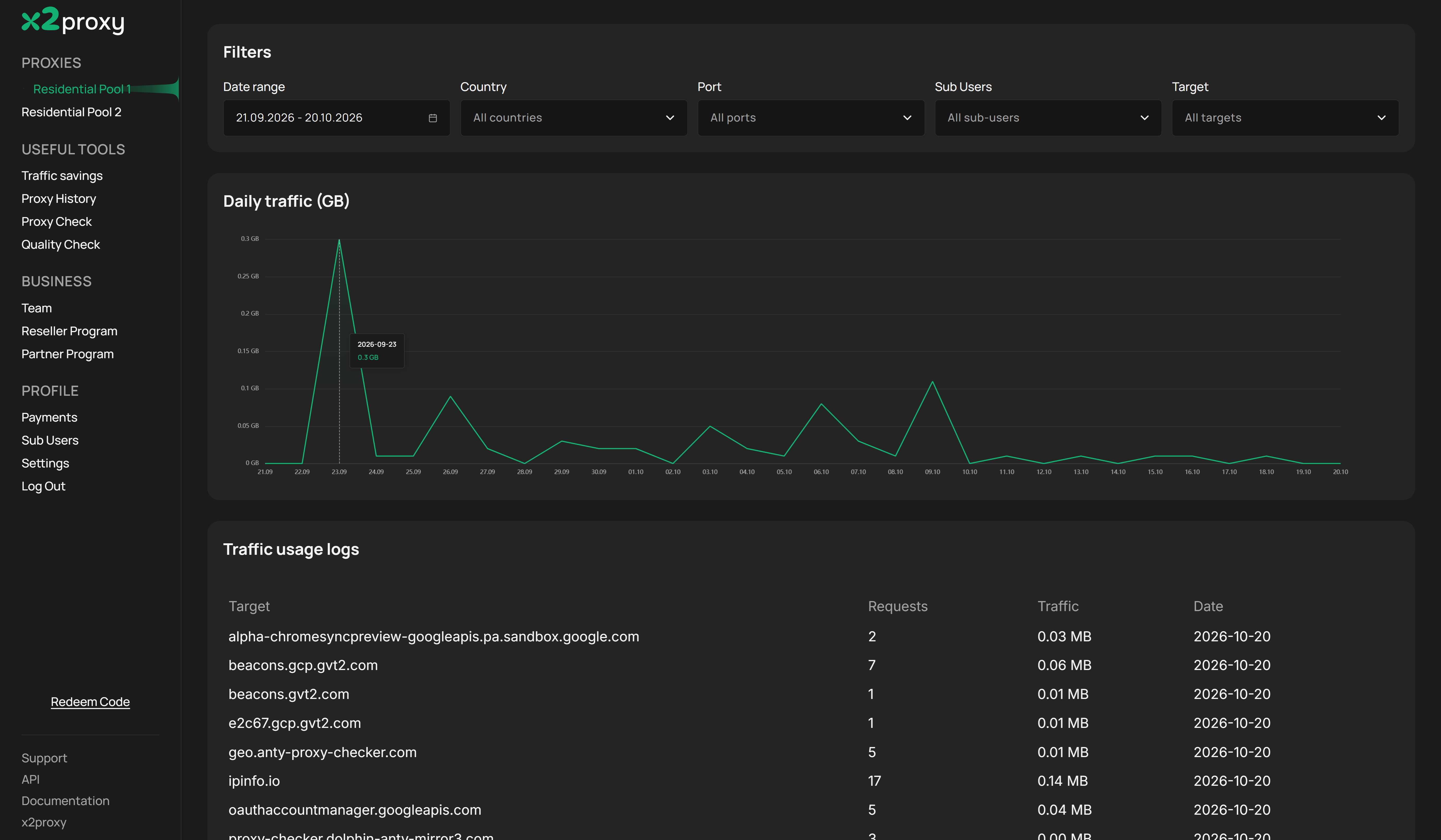
Statistics: usage down to every request BETA
You'll find this tab in every pool once you turn it on under Features. Filter by date range, country, port, sub-account or target. The Daily traffic chart shows usage day by day, so spikes are easy to spot. The Traffic usage logs show which domain or IP was requested, how many requests there were, how much data they used and when.
It's the quickest way to figure out what's eating your data. Often it turns out to be background browser calls to Google services, which you can then block with Traffic Savings.
Alerts: usage notifications
Under Settings → Alerts, you can set up email alerts for each pool. You pick the threshold, anywhere from 1% to 100%. For example, you might want a heads-up at 80% and another one at 100%. Alerts always go to your account email, so your proxies won't run dry in the middle of a job without warning.
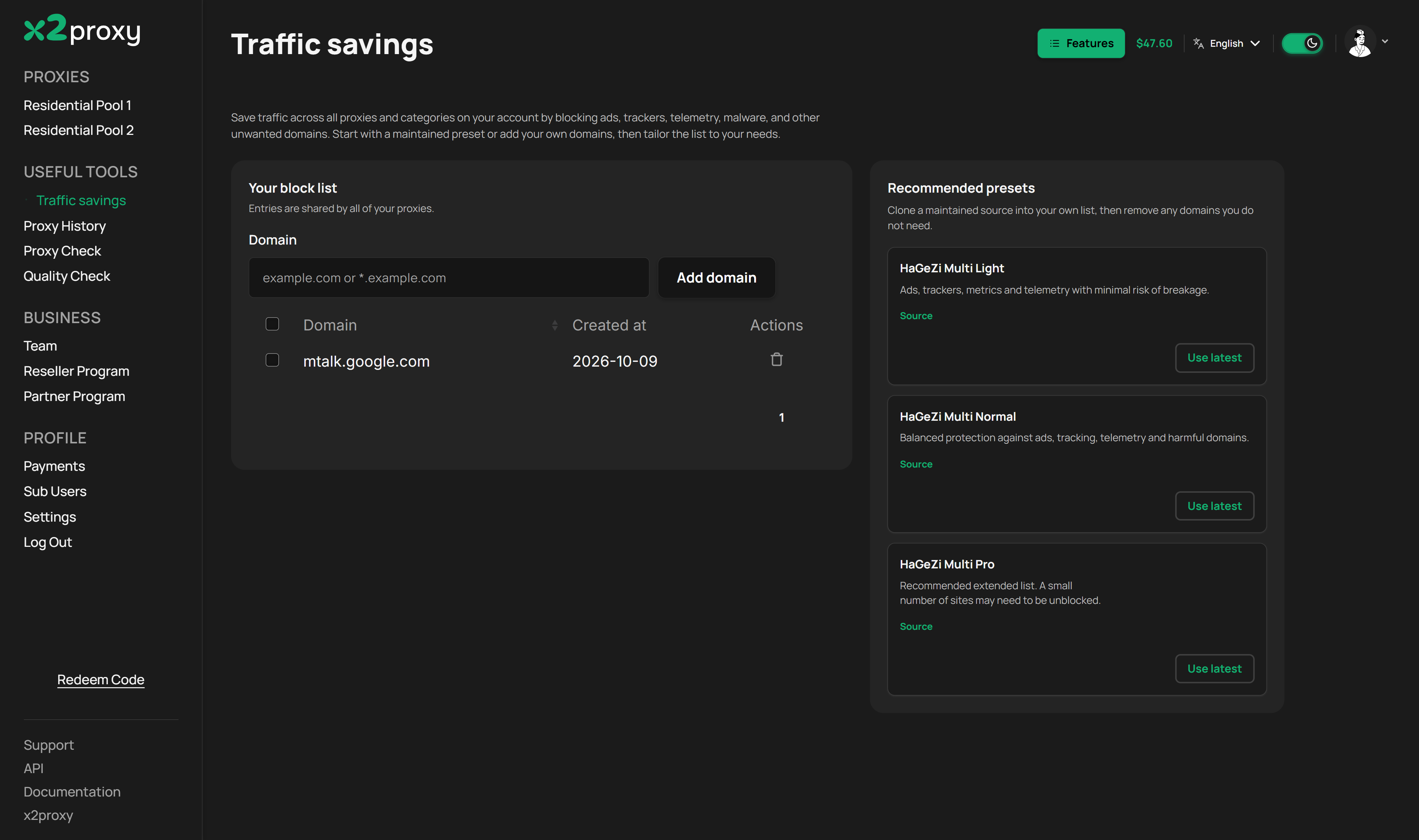
Traffic Savings: stop paying for junk BETA
Ads, trackers, telemetry and background requests all use up your data, and you get nothing out of them. Traffic Savings blocks them on every proxy in your account.
You can add any domain to your own list (example.com, or *.example.com to cover all its subdomains) or a specific IP. There are also ready-made presets based on HaGeZi's public blocklists, which are kept up to date:
- Multi Light blocks ads, trackers and telemetry with very little risk of breaking anything;
- Multi Normal gives you balanced protection, including against harmful domains;
- Multi Pro blocks the most, though you may need to unblock the odd site.
A preset is copied into your list, and you can remove anything you'd rather keep. Turn it on under Features.
Sub-accounts (Sub Users)
Sub-accounts help you keep a team organized. You can split proxies and traffic by person, project or department and always know who's using what.
- Each sub-account gets its own limit per pool, for example 5 GB in Pool 1 and 2 GB in Pool 2. Set it to 0 if you don't want a limit.
- You can switch a sub-account off for a while without deleting it.
- Usage for each pool shows up right in the list.
- Usernames and passwords can be generated for you, so setting one up takes seconds.
You can create, edit and delete sub-accounts. Open the section from the profile menu or from the Sub Users tab in any pool. Generate proxies for a specific sub-account in Proxy Creation and see its usage in Statistics.
Where our IPs come from
Our residential network is made up of real devices that belong to real people.
Devices join in one of two ways: through our own VPN apps, or through third-party apps that have one of our SDKs built in.
Either way, the rule is the same. People are told clearly what taking part involves, and they explicitly agree before their connection is shared. We never add a device to the network without its owner knowing.
Two pools: Residential Pool 1 and Residential Pool 2
Our infrastructure automatically sorts devices by how reliably they stay online. That's why we have two pools, each suited to a different kind of work.
| Residential Pool 1 | Residential Pool 2 | |
|---|---|---|
| Devices | High uptime: they rarely go offline or lose their connection | Lower uptime: they go offline more often |
| Sticky sessions | 1 minute to 120 hours (5 days) | Up to 2 hours (120 minutes) |
| Keep IP same | Yes | No |
| Best for | Managing accounts, long sessions on one IP, and anything where a sudden IP change would cause trouble | Short tasks, scraping, checks and one-off jobs |
What happens when a device goes offline
In both pools, the system automatically moves you to another device in the same location. If there isn't one available, the proxy will be unavailable for a while.
Keep IP same: no surprise IP changes
This option is available in Residential Pool 1. If the exit device shuts down, loses its connection or closes the app, the proxy won't switch to another device. It just stops working. That way your IP never changes out of the blue in the middle of a task, which matters a lot when a sudden switch could trigger a security check or get an account banned.
Proxy Creation: the classic generator
If you just need regular proxy strings, start here. It works like the generators you've seen with other providers, only it's easier to use.
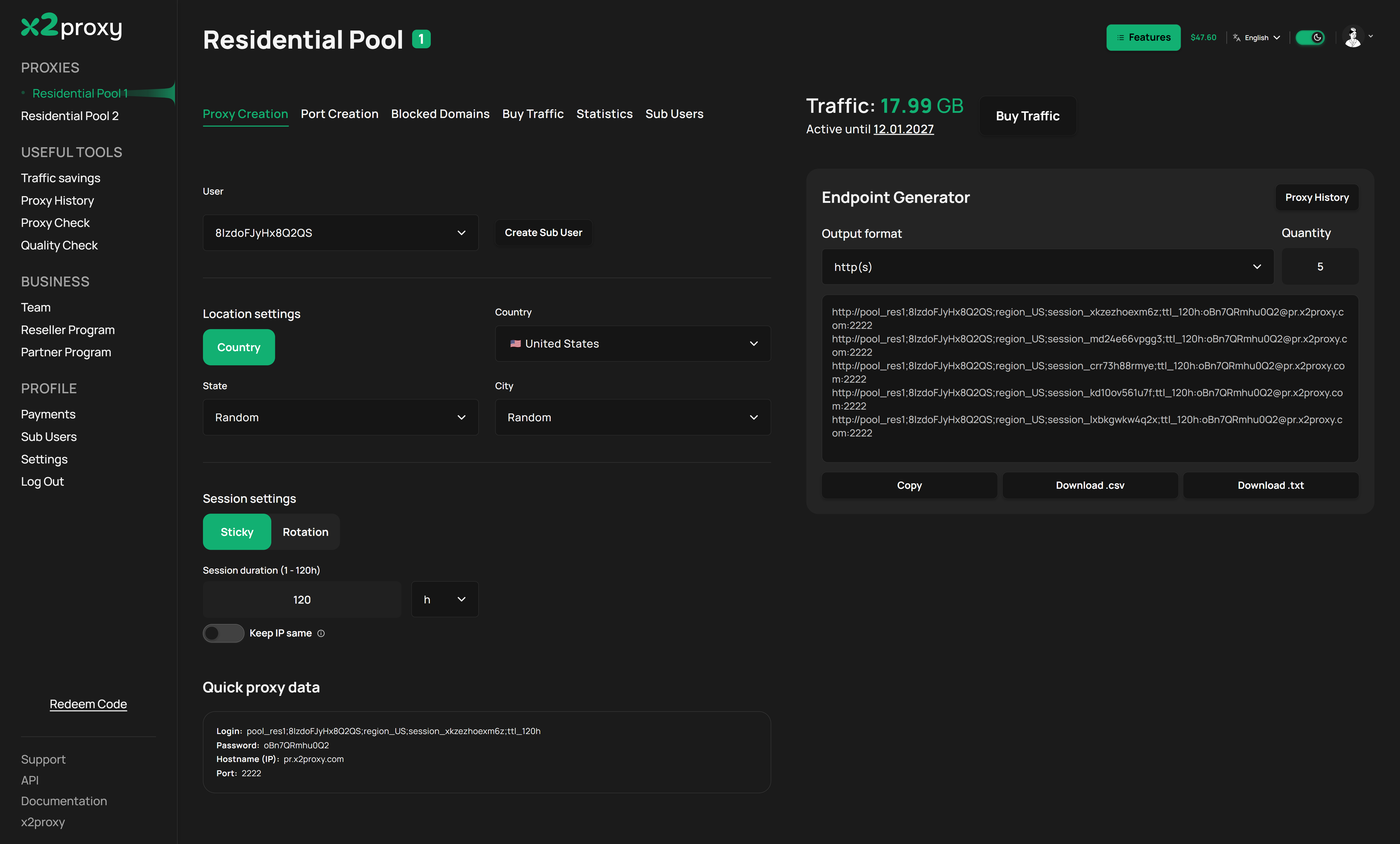
- Under User, choose the sub-account (Sub User) you want proxies for, or create a new one right there.
- Set the location. Country is required, while state and city are optional.
- Choose a session:
- Sticky holds the same IP for as long as you set, from 1 minute to 120 hours in Pool 1 and up to 2 hours in Pool 2;
- Rotation leaves the
sessionparameter out of the string, so the IP isn't tied to anything and changes on its own; - we covered Keep IP same above.
- In the Endpoint Generator, pick the output format and how many proxies you need. You'll get that many unique proxies to copy or download as
.txt/.csv.
Here's what a proxy string looks like:
http://pool_res1;USERNAME;region_US;session_XXXXXXXX;ttl_48h:PASSWORD@pr.x2proxy.com:2222Quick proxy data splits the first proxy into separate fields (Login, Password, Hostname, Port) for tools that can't read a full string.
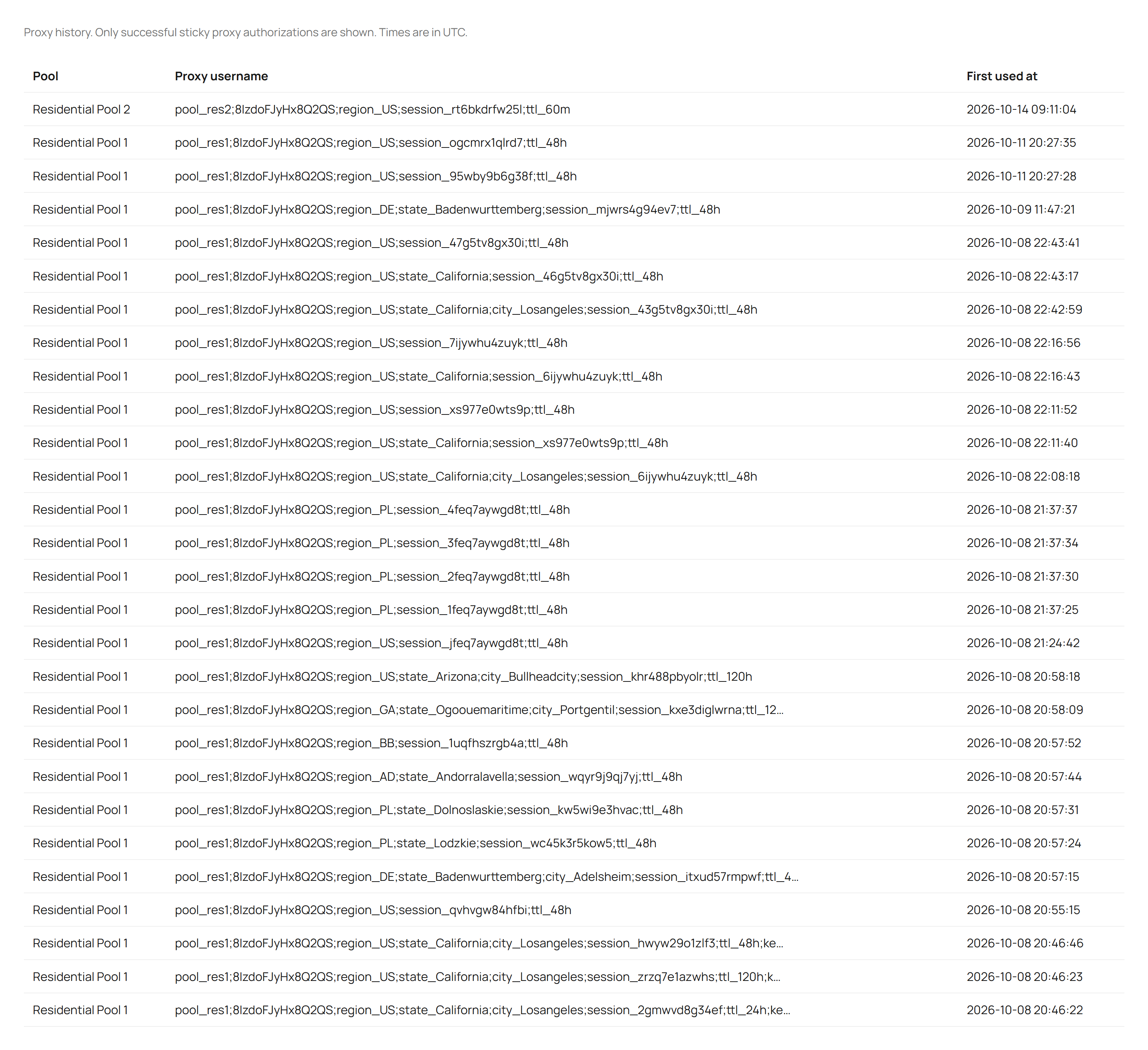
Proxy History: never lose a proxy that worked BETA
The Proxy History button opens a list of every sticky proxy you've actually connected through at least once. Proxies you only generated don't show up there. For each one you'll see the pool, the full proxy username with location and session, and when it was first used (in UTC). It's perfect when you need to get back to that one proxy that worked last week. Turn it on under Features.
Features: turn on what you need
The Features button at the top of the dashboard opens extra tools. They're all off by default, and you can turn them on or off whenever you like.
| Feature | What it's for |
|---|---|
| Traffic Savings (Data Savings) BETA | Blocks ads, trackers and unwanted domains on all your proxies. Learn more |
| Proxy History BETA | Keeps a list of every proxy you've connected through. Learn more |
| Statistics BETA | Usage charts and detailed logs with filters. Learn more |
| Do not force IP address change (Keep IP same) BETA | In Pool 1, your IP won't change without you knowing. Learn more |
Pricing and payment
General Plans: buy more, pay less
You'll find the plans in the Buy Traffic tab of each pool. Traffic you buy is valid for 90 days.
| Volume | Residential Pool 1 | Residential Pool 2 | ||
|---|---|---|---|---|
| Price | Per GB | Price | Per GB | |
| 2 GB | $8 | $4.00 | $7 | $3.50 |
| 10 GB | $35 | $3.50 | $30 | $3.00 |
| 25 GB | $75 | $3.00 | $68.75 | $2.75 |
| 50 GB | $137.50 | $2.75 | $125 | $2.50 |
| 100 GB | $250 | $2.50 | $225 | $2.25 |
| 250 GB | $562.50 | $2.25 | $500 | $2.00 |
| 500 GB | $1000 | $2.00 | $900 | $1.80 |
| 1000 GB | $1800 | $1.80 | $1600 | $1.60 |
| 2000 GB | $3300 | $1.65 | $3000 | $1.50 |
| 3000 GB | $4500 | $1.50 | $4200 | $1.40 |
For the latest prices, check the Buy Traffic tab of the pool you're interested in.
Custom Plans: terms that fit you
Need a specific amount of traffic at a fixed price? Click Contact in the Custom Plans section and we'll put together a deal that works for you.
How long traffic lasts
Traffic is valid for 3 months from purchase, and you can see the expiry date at the top of each pool page. If it expires before you've used it all, you don't lose it: any small purchase makes the leftover available again. Need a different validity period, or none at all? Get in touch with support and we'll sort something out.
Payment
You pay for traffic from your x2proxy Wallet balance, which you can top up on the Payments page. Right now we accept crypto, and you choose the coin and network at checkout. The minimum top-up is $5. The same page also shows your Balance History and Invoices.
Dashboard: everything on one screen
This is the first page you'll see after you sign in.
- Your pools, with the traffic left in each and a shortcut to open them.
- Our latest Telegram post, so you don't miss any news.
- A Traffic usage widget showing usage across all pools for the last 7 or 30 days. Click Details for the full stats.
- Along the top: Features, your Wallet balance, the language switch (RU/EN), light or dark mode and your profile.
The sidebar has your pools, handy tools (Traffic savings, Proxy History, Proxy Check, Quality Check), business programs (Team, Reseller Program, Partner Program) and your profile (Payments, Sub Users, Settings). You'll also find links to Support, API and Documentation there.
Important: access to CIS countries
This rule applies to every pool, now and in the future.
Proxies in a CIS country can only be accessed from an IP address in that same country. So Russian proxies only work from a Russian IP, and Ukrainian proxies only from a Ukrainian IP. The same goes for every other CIS country.
We can sometimes make exceptions on a case-by-case basis. Just reach out to support.
Coming soon
UDP support
You'll be able to use UDP traffic. To turn it on, just ask support.
OS fingerprint selection (p0f)
You'll be able to make your proxy connection look like Windows, Android, iOS or macOS at the network level (the p0f fingerprint), so it matches the device you're emulating. While it's in beta, support can turn it on for you. Once testing is done, it'll be available to everyone by default.
Useful links
- Dashboard: https://cabinet.x2proxy.com/
- Proxy host:
pr.x2proxy.com, port2222 - API documentation: https://api.x2proxy.com/docs
- Port links:
https://api.x2proxy.com/ports/show-ip?token=…,https://api.x2proxy.com/ports/rotate-ip?token=… - Support, API and documentation are also linked in the dashboard sidebar.